Using prayer times with Apple Watch and widgets
Written and reviewed by the Tevazu Team
- Apple Watch
- iPhone
Short answer
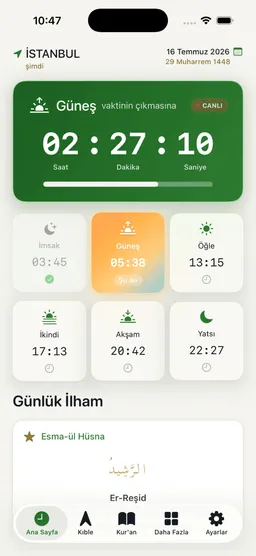
Apple Watch complications and iPhone widgets are added from system galleries when an installed app offers a compatible surface. If Tevazu appears in the gallery, select the layout that fits your watch face or Home Screen. Open Tevazu after location, time-zone or version changes so the displayed prayer-time data can refresh. Availability can differ by device, platform and App version.
Applies to: Compatible iPhone/Apple Watch versions and a Tevazu version that exposes the selected system surface.
Add and refresh the surface
- Prepare the app. Install or update Tevazu on the paired iPhone, then open it and confirm the current location and prayer times before configuring a system surface.
- Apple Watch complication. On Apple Watch, touch and hold a compatible watch face, choose Edit, move to Complications and select Tevazu if it appears in the available list.
- iPhone widget. On iPhone, open the widget gallery from Home Screen edit mode and select a Tevazu widget if the current App version provides one.
- Refresh after changes. After changing city, location permission or time zone, open Tevazu again. Give the system surface time to request and display the current data.
- Restart and report. If data remains stale, restart the relevant device once and contact support with iPhone/Watch models, OS versions, Tevazu version and a screenshot of the surface.
Primary sources
- Apple: Add complications to the watch face (opens in a new tab) support.apple.com